
Build a STORM II AI scene with two distinct photo roles
STORM II AI depends on contrast: one person holds your attention while a surrounding crowd moves together. Two photos define those two visual roles. This tutorial explains what each slot controls and what to check when the group bows. Start with the STORM II AI tool once you have a lead portrait and a separate crowd reference.
Create a STORM II AI video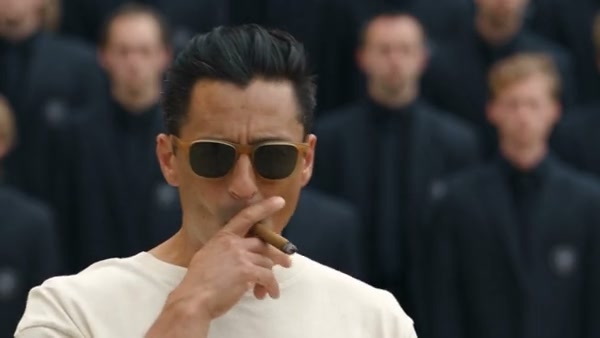
Read the scene before choosing your cast
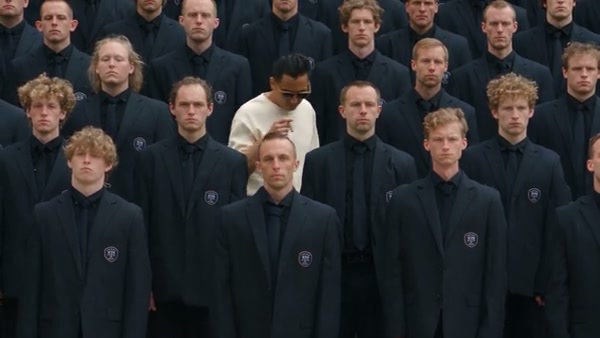
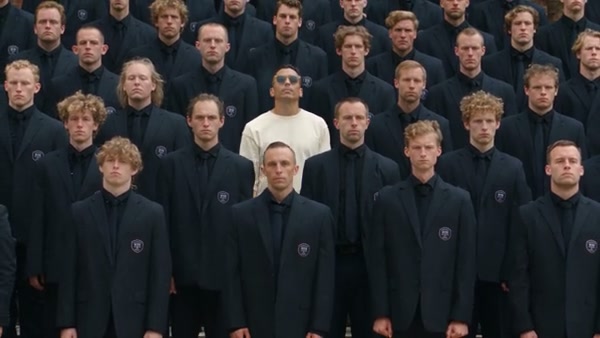
The prepared sequence moves from a close view of the lead to a wider formation of people. As the surrounding performers bow and rise, the central figure remains the visual anchor. This means the opening portrait and the wide crowd shot both matter; a good face in one frame does not tell you how the formation will look later.
In this community example, a light shirt separates the lead from the dark clothing around him. Follow that contrast as the camera pulls back. The clip illustrates a possible visual direction, not a test result from this guide. The tool uses its own loaded reference, approximately 28 seconds long, with its timing and camera movement already defined.
Give each STORM II AI photo one job
Photo 1: the lead
Use Lead photo · 1 for the central performer. Choose one person with a readable face, hairstyle, and outfit. The camera starts close enough that a blurred face or a heavily filtered portrait can become a visible weakness before the crowd sequence even begins.
Photo 2: the crowd appearance
Use Crowd photo · 2 as one appearance reference for the surrounding performers. This slot does not map a separate friend to each position. Choose a clear reference for the look you want repeated across the group, with clothing visible as well as the face.
Build a visible distinction
Different clothing tones or silhouettes make it easier to read the two roles in a wide shot. If both references use similar dark outfits, the lead may be harder to follow even when the role assignment is correct.
Keep the references simple
Avoid collages, overlapping faces, and screenshots covered in captions. Each image should communicate a single appearance clearly. If you want an invented character, prepare and inspect that still image before bringing it into the moving scene.
STORM II AI cannot promise a perfectly identical crowd. Small faces, overlapping shoulders, and changing perspective can introduce differences between performers. Use the second photo to establish a coherent visual direction, and judge the group in motion as well as in a paused frame.
Generate the STORM II AI performance
1Watch Original in the tool
Open the STORM II AI generator and preview the original sequence. Notice where the lead begins and when the crowd changes posture. This is the movement your two references will be applied to.
2Fill the lead, then the crowd slot
Upload the lead image first and the crowd reference second. Check the two thumbnails against their labels before proceeding. If you picked them in the wrong order, replace the contents of the relevant slots; do not assume the model will infer the intended assignment.
3Review Settings and the estimate
Select an available resolution in Settings and check the credit estimate beside the generation action. The template supplies its prepared instructions, framing, and timing. There is no need to upload a separate motion clip or type an elaborate crowd prompt.
4Submit and inspect the finished sequence
Sign in when prompted, choose Generate, and follow progress in My creations. When the output is ready, play it from the close-up through the final group movement with sound enabled. Download after reviewing the full result.
Check the bow, the lead, and the space between people
The lead begins to resemble the crowd
Compare the face and outfit in the opening shot with the central person in the wider formation.
Confirm that the two role thumbnails were correct. For another attempt, choose references that are visually distinct and show more of the clothing. Similar-looking photos can make a role mix-up harder to diagnose.
The formation loses its rhythm
Watch adjacent rows as they lean down and return. Look for a shoulder, head, or torso moving out of step with the surrounding pattern.
Judge the full motion at normal speed before relying on a single frame. This template follows a synchronized reference, but a generated crowd can still contain local movement errors.
Faces or bodies merge during the bow
Pause near the deepest bend and inspect the gaps between rows. Then resume playback to see whether the overlap resolves or persists.
Keep the original framing when evaluating the scene. A tighter crop cannot restore missing separation. Save the result you have before deciding whether a clearer reference justifies another generation.
Choose a different cast structure when you need one
For individual roles that appear at different camera positions, the Gas Station Dance AI tutorial explains a three-photo sequence. For one lead and optional supporting photos in a lounge, see the Burning Bridges AI tutorial. You can also prepare a distinct character image with the AI Image tool before returning to STORM II AI.
STORM II AI role and output questions
How many photos does STORM II AI need?
The page provides two required roles: one lead photo and one crowd appearance reference. Check the role labels before generating.
Can every crowd member have a different face?
The crowd slot provides one appearance reference for the surrounding performers. It does not assign a separate uploaded person to each crowd position.
Can I choose similar outfits for the lead and the crowd?
You can choose those appearances, but similar tones may make the lead difficult to distinguish in a wide shot. Stronger visual contrast is often easier to evaluate.
Does STORM II AI include the scene’s sound?
The completed performance uses the reference soundtrack. Play the finished video with sound before downloading it, and check both the opening and the group movement.
Start with a lead you can pick out of the crowd
Choose two clear appearances, check their slot order, and let the prepared reference supply the group movement.
Create a STORM II AI video