Skip to content

STORM II AI Video Generator

Create a STORM II AI crowd performance with two reference photos. Choose the lead and surrounding cast, following the loaded choreography and original sound.

Create a video

STORM II AI28s · Original soundtrack
Lead photo · 1
Crowd photo · 2
STORM II AI reference performance

Two appearances shape your STORM II AI cast

STORM II AI brings two visual references into one coordinated crowd performance. Your first image defines the lead at the front. Your second image supplies the appearance reference for the surrounding performers. The loaded clip carries the formation, camera movement and timing, so you can concentrate on the people you want represented. This is a focused recasting tool: the crowd reference does not create a separate upload assignment for every person in the frame. Preview the scene first to understand how the two inputs will be used.

Community STORM II adaptation with a black-clad lead and a crowd wearing conical hats

Start a STORM II AI performance

  1. 01

    Choose your STORM II AI lead

    Add a clear photo of the person who should occupy the front role. Keep the face, hairstyle and intended outfit visible. The first image is reserved for this lead, so do not use the crowd reference in the first slot.

  2. 02

    Set the look of the surrounding cast

    Add the second appearance reference, then inspect Settings and the displayed estimate. STORM II AI uses this image for the surrounding performers while the source provides their arrangement and action. The prepared prompt already distinguishes the two roles.

  3. 03

    Review the complete group performance

    Generate when both images are ready. Watch your STORM II AI result in My creations, checking the front character and the people around them through the full sequence. Listen to the original sound, then download the finished clip you want to keep.

What matters in a STORM II AI scene

A distinct lead for STORM II AI

The visual hierarchy of STORM II AI depends on the lead remaining identifiable as the group moves. Photo 1 is dedicated to that character's appearance, including visible face, hair, build and clothes. Choose a reference with enough separation from its own background that the intended person is easy to recognize.

Your lead does not need to copy the original pose. The performance supplies the action. For a useful STORM II AI reference, clarity and a complete look matter more than acting out the choreography. A sharply photographed upper body is more informative than a dark frame where the face and outfit disappear into the surroundings.

How the STORM II AI crowd reference works

Photo 2 supplies the appearance direction for the surrounding cast. STORM II AI does not offer a roster in which every background position receives its own image. Think of the second input as a way to influence the look of the ensemble while the loaded footage supplies its number, placement and synchronized movement.

This distinction is important if you are trying to include several friends. STORM II AI cannot promise that each face in a group photograph will be assigned to a particular performer. If individual identity matters, choose a workflow with explicitly separate roles, such as Gas Station Dance AI, and use those photo slots as directed.

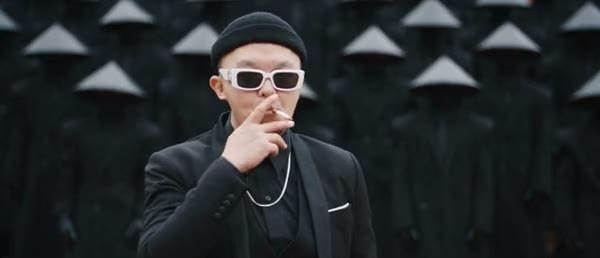
Sunglasses-wearing lead in front of a suited crowd

Keep the formation that makes the scene work

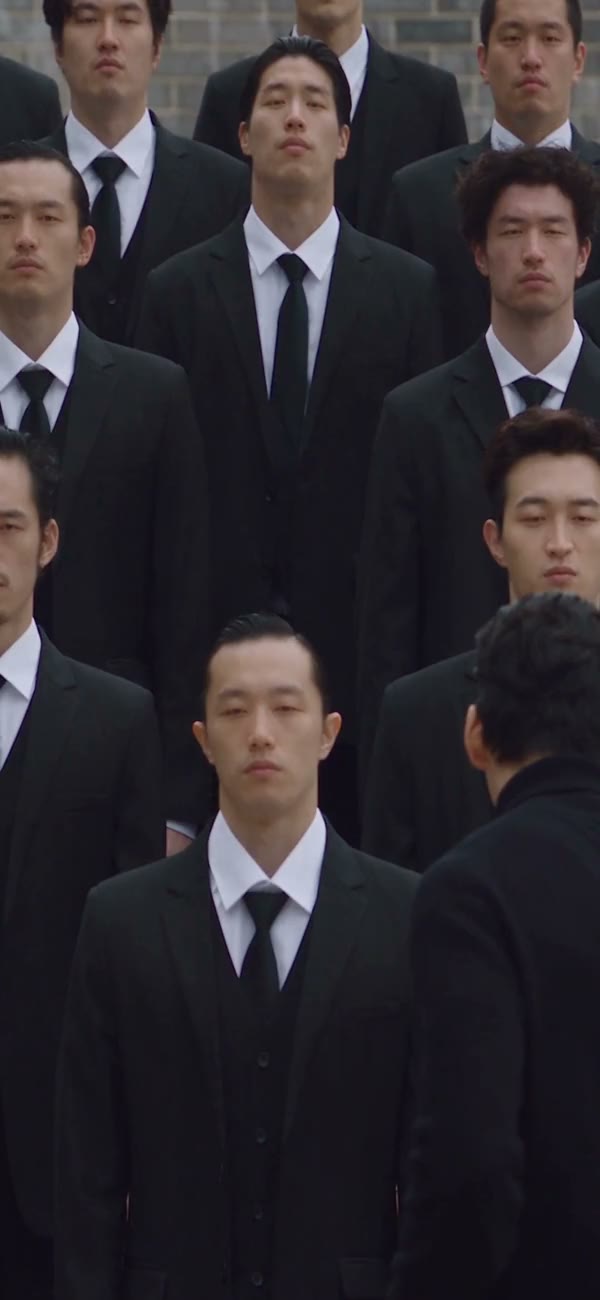
The group arrangement is a central part of the effect. STORM II AI is instructed to follow the source spacing, depth and relative positions rather than inventing a new crowd. Those relationships help the lead remain connected to the surrounding performance as the camera and bodies move.

Crowds are also demanding to generate. STORM II AI can produce duplicated features, merged bodies or changes to a person near an overlap. Review the edges of the group and the areas close to the lead. A strong central face does not compensate for visibly broken supporting figures, especially when the final clip will be watched on a larger screen.

Let choreography carry the momentum

STORM II AI borrows the source's poses, direction of movement and timing. You provide appearance references rather than a newly recorded dance, which lets you explore a different cast without organizing a synchronized shoot. The prepared edit aims to keep the group moving within the same performance structure.

Changing the prompt to request a new routine can conflict with that objective. Use STORM II AI when this choreography is the reason for choosing the tool. For a fresh sequence or a scene with a different story, move to the AI Video Generator and develop the idea separately instead of expecting this fixed reference to become an open-ended director.

Wide formation and synchronized bow in the black-hat community adaptation

Clothing can unite or separate the cast

The photos can communicate more than faces. In STORM II AI, the lead's outfit can create a clear focal point while the second reference suggests a consistent look for the surrounding group. Select the clothes you want in the input images instead of relying on the system to infer a costume from a close-up.

You can explore a contrast between a distinctive lead and a more uniform ensemble, or try two references with a related visual style. STORM II AI still interprets the details during motion. Small logos, jewelry, textures and hidden garments may change, so keep expectations grounded in the size and clarity of the visible reference information.

The original STORM II AI soundtrack

STORM II AI includes the original sound from the loaded performance with the finished edit. The aim is to retain the familiar rhythm that makes the group action legible, without requiring you to upload a track separately. The source also determines the wide frame and approximate running time.

This is not a way to record a new vocal performance for your cast. STORM II AI uses the reference soundtrack, and retaining it does not establish publication rights. Watch the complete output with audio enabled before sharing. Check that the opening and ending feel coherent, as well as the movement in the middle of the sequence.

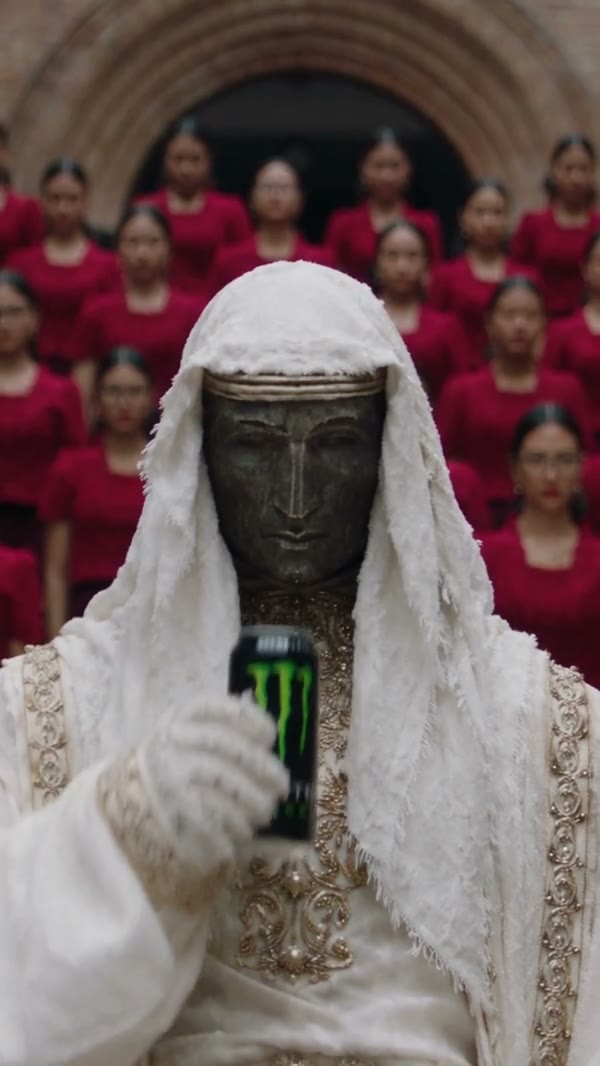
White-cloaked lead contrasting with a crowd dressed in burgundy

A cast experiment you can compare deliberately

STORM II AI can be useful for a fictional ensemble concept, a personal performance remix or a comparison of character styling. Begin with two images you are authorized to use. Keep the purpose clear: you are exploring how those appearances read inside this scene, rather than documenting a real group performance.

For a second STORM II AI attempt, change the input that relates to the problem you saw. If the lead is unclear, improve Photo 1; if the surrounding style is wrong, reconsider Photo 2. Keeping other settings stable helps you compare the results, although generative outputs can vary even with similar inputs.

STORM II AI output settings

The video-editing model and default prompt are prepared for this template. STORM II AI exposes the available resolution choices in Settings and shows an estimate for the request. The performance length follows the loaded reference; there is no separate duration control for extending the choreography.

You may enable a custom prompt when you have a specific adjustment, but preserve the distinction between Photo 1 and Photo 2. A first STORM II AI attempt is easiest to assess with the prepared instructions. Review the result, identify one concrete improvement and then decide whether another image or another setting is worth a new generation.

Source formation with one foreground lead and rows of surrounding performers

STORM II AI: your questions answered

How many photos does STORM II AI require?

Two: one for the lead and one for the appearance of the surrounding cast. Both serve distinct roles in the prepared edit. A single combined collage does not replace the two separate uploads, and adding more pictures does not create more individual crowd assignments.

What does the second STORM II AI image control?

It provides an appearance reference for the surrounding performers. The source video remains responsible for their arrangement and choreography. It is not a one-photo-per-person casting system, so a group picture cannot guarantee a particular friend in every position.

Can STORM II AI use fictional characters?

You can provide character images you have permission to edit. Choose references with readable faces, bodies and clothing. Highly stylized anatomy can make the source movements harder to reproduce, so judge the actual result rather than assuming every character style will behave the same way.

Will STORM II AI preserve every background person perfectly?

The instructions aim to preserve the formation and consistent appearances, but the output is not guaranteed. Overlapping bodies and synchronized movement can cause identity mixing, duplication or distorted limbs. Review supporting figures throughout the sequence, including those near the frame edges.

Does STORM II AI include the original sound?

Yes, the finished video uses the sound from the loaded reference. You do not need to supply an additional soundtrack file. Check permissions before publishing it; the ability to create a clip does not grant rights to the source music or footage.

How long is a STORM II AI video?

It follows the reference for about 28 seconds in a wide frame. The tool does not have a separate duration picker or a control that adds new choreography beyond the source. Inspect the completed file for continuity from its opening through its final movement.

Should I write a STORM II AI prompt?

The prepared prompt already defines the lead, crowd and movement to preserve. You can start without writing anything. If you enable a custom prompt in Settings, keep the two image assignments intact and make a focused request that fits the existing performance.

Why does photo order matter in STORM II AI?

Photo 1 supplies the front character and Photo 2 supplies the crowd appearance. Reversing them changes which visual identity belongs to each role. Check the labels before generating, especially if the two images have similar colors or both contain several visible people.

How are STORM II AI credits shown?

The Generate control displays the estimate for the current request and selected settings. You need an account and sufficient credits to create the video. Uploading photos and viewing the reference are preparation steps; they do not themselves submit a paid generation.

Can I return to a completed STORM II AI result?

Yes, use My creations or your video history to open saved results and download them. If a task is still working, follow the status shown there. Avoid submitting duplicates simply because the current generation has not finished yet.

Build your STORM II AI cast

Choose the lead, set the surrounding appearance and bring both into one coordinated performance. Start with two clear references and review your settings before generating.

Try STORM II AI