Skip to content

Ceiling Fan AI Video Generator

Send four looks into one room, beat by beat. Photo order decides the outfits, while the fan and the walls remain part of the scene.

Create a video

Look 1 · Photo 1
Look 2 · Photo 2
Look 3 · Photo 3
Look 4 · Photo 4

Four looks, one room, a fixed order

Ceiling Fan AI is a casting page for a room that already has its action. You bring four photos. Each photo is one appearance and one outfit for a single beat, played as Photo 1, Photo 2, Photo 3, then Photo 4. The room and the ceiling fan stay in the scene. You are choosing who is visible, and in which clothes, each time the look changes. Upload people only when you have permission. A custom prompt or a custom video belongs at /video.

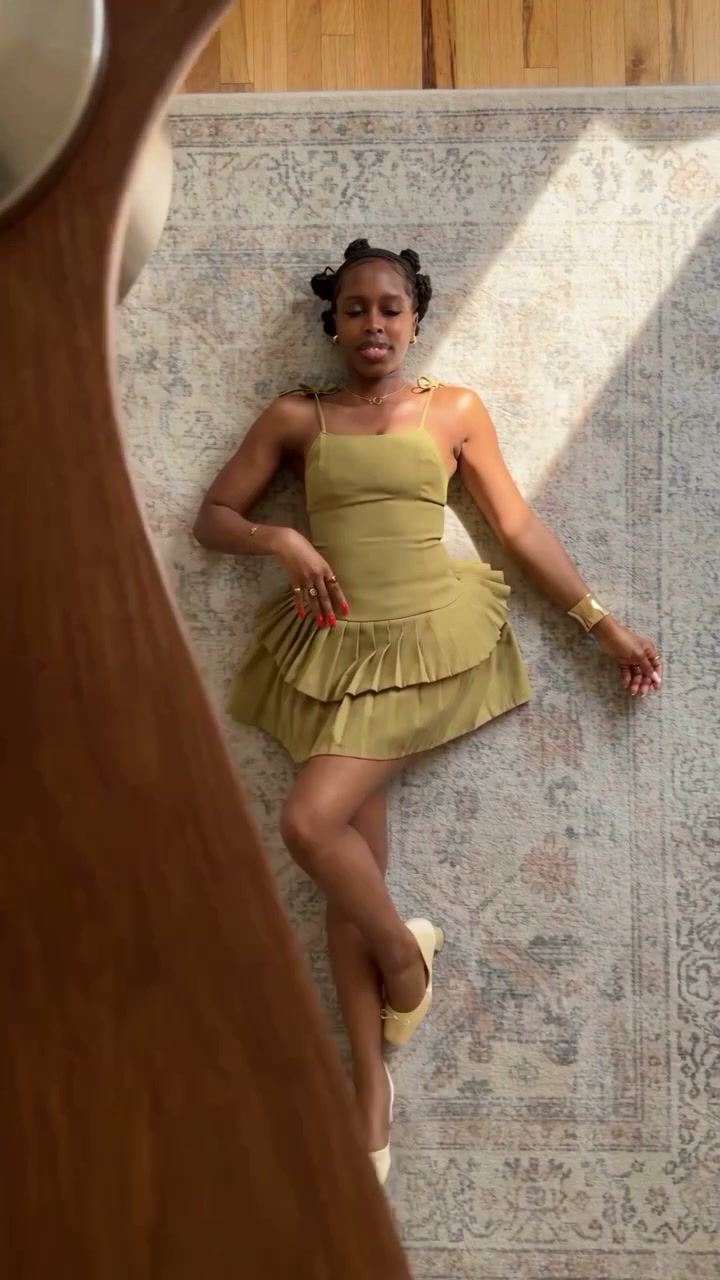
Community sequence of four dress looks under the ceiling fan

Line up the looks, then the size

  1. 01

    Give every beat its own photo

    Add four images in the labeled order. Keep one face, one hairstyle, and one outfit readable in each file. Photo 1 opens the sequence. The next three files follow it. A collage in the first slot does not fill the later beats.

  2. 02

    Set the resolution before the estimate

    Open Settings and choose a resolution. Credits follow that choice, so read the estimate after the size is selected. This page does not take a prompt. The four photos already decide which outfit lands on which beat.

  3. 03

    Watch the room through every change

    Play the finished clip from the first look to the last. The fan and the room should still read as the same place. Listen to the soundtrack that comes back with the performance, then keep the version you want from your creations.

What you decide in Ceiling Fan AI

Order the four looks before you upload

Photo 1 opens the sequence, Photo 2 follows, Photo 3 comes next, and Photo 4 closes it. That order is the casting decision. If the striped jacket belongs on the last beat, put that photo in the fourth slot rather than the first. Reversing two files changes which outfit the room reveals, even when the people stay the same.

Use a separate image for each beat. Four faces in one collage do not map onto the four slots, and a single portrait cannot supply the later outfits. If two beats should share a person, upload that person twice, dressed for each beat. The scene still treats the slots as four successive looks, not as four bodies standing in the room together.
The room and the fan stay put

The ceiling fan, the walls, and the way the shot moves through the room are already in the scene. Your photos do not need a fan, a ceiling, or matching furniture. A portrait from a kitchen, a hallway, or a sidewalk can still enter this room. The set does not follow the photo back to where it was taken.

A busy street behind your subject is not a request to move the performance outside. The room and the fan remain, and the photo is used for the person and the outfit on that beat. If the idea needs a different set, a custom prompt or a custom video goes to /video instead of a note on this page.

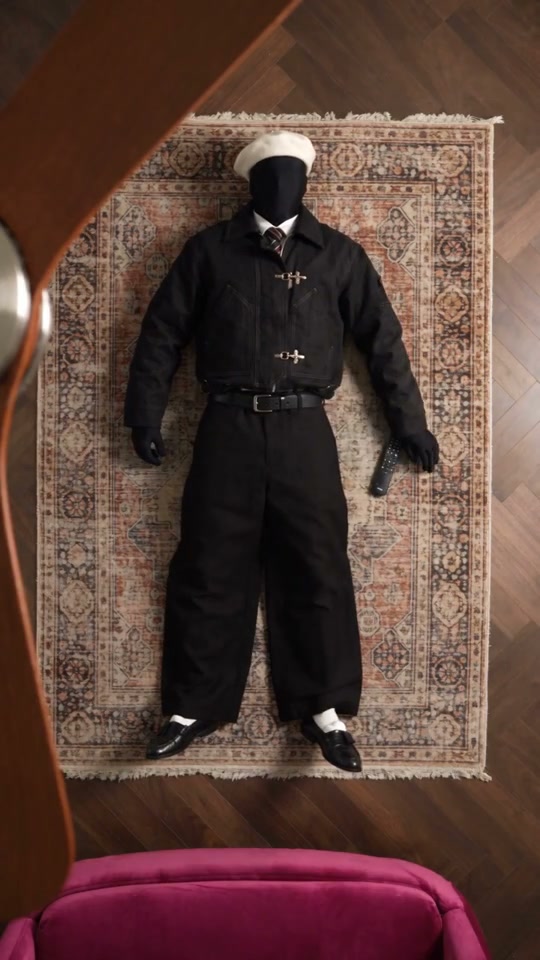
Community sequence using four streetwear looks in order

Dress each beat on purpose

Each photo is the wardrobe for its beat. Show the shirt, jacket, dress, or costume you want seen, rather than a crop that ends at the chin. Fine lettering and small jewelry can soften once the person is moving, so favor a shape and a color that still read if a tiny detail shifts.

A visible change from one look to the next makes the order easier to follow. Four near-identical dark tops can blur together under the same fan. You may repeat a color when the hair, the cut, or the person changes. Judge the sequence by whether you can name which photo is on screen at each handoff.

One appearance inside each frame

Put one intended subject in each photo. A group picture forces a guess about who owns the beat, and a second face near the edge can leak into the look. When you are casting friends, give each friend a separate frame and place that frame on the beat where you want them to appear.

Permission is required for every person you upload. A picture of a stranger, a classmate, or someone you do not know is not yours to drop into the room because the file is on your phone. Use yourself, people who agreed, or a character image you are allowed to use, including when one person supplies all four looks.

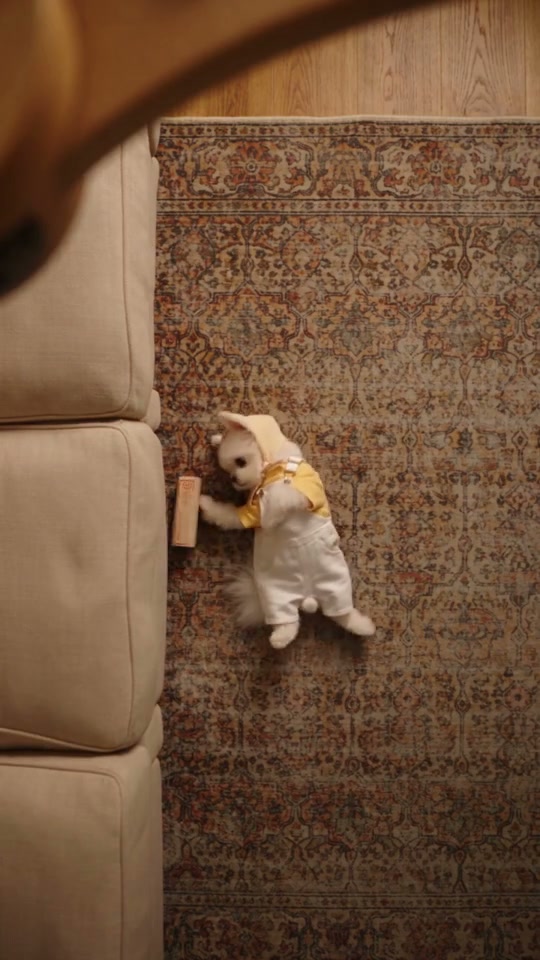
Community sequence with four pet costume looks

The sequence does not grow new rooms

There is no fifth slot and no control for another outfit change. The poses, the transitions, and the timing are already in the performance. Your four photos fill the looks that exist. They do not stretch the scene into a second room, a new camera path, or a story that continues after the last beat.

The source media runs about 15 seconds. The output runs about 16 seconds. This page has no duration picker, so those lengths are the scene you are casting. Watch the whole result, including the closing look, before you decide that the order was the one you meant.

Sound returns with the same performance

The soundtrack you hear is restored from the source performance. You do not attach a separate music file, and the photos do not bring audio of their own. Listen through each outfit change. A handoff can feel early or late even when the clothes look right, and the sound is part of that check.

Restored audio is not a new recording of the uploaded person, and it does not give you rights to publish the track. Mouth movement follows the performance already in the room. Treat a close match as something to review in the downloaded file, not as a result you can assume before you press play.

Frame of the fourth look at the end of the sequence

Resolution is what the estimate follows

Credits follow the resolution you select in Settings. Changing that size changes the estimate shown before you generate, even when the four photos stay the same. Read the number after the resolution is set, and make sure the account can cover it. Choosing the files does not itself spend the credits.

A larger size will not invent a jacket the photo never showed. If one beat looks vague, replace that photo before you spend another generation on a bigger file. There is no prompt box here. The prepared casting stays tied to Photo 1, Photo 2, Photo 3, and Photo 4 in that order.

A second pass starts with the weak look

When one beat is the problem, change that photo and leave the other three where they are. Replacing all four at once makes it hard to see what helped. Hold the resolution steady while you compare, then look at the face, the clothes, and the moment the look hands off to the next one.

The finished clip remains in your creations, so reopening it does not require a new generation. Start another request only when a photo or the resolution is different on purpose. If the idea is no longer this room and this fan, leave the page and build that other scene at /video.

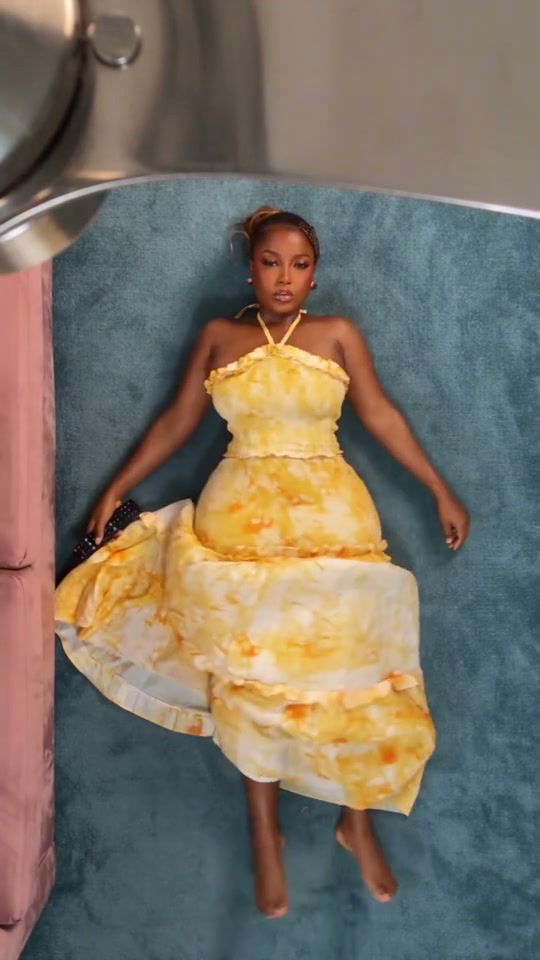
Still from the dress sequence in the fan-lit room

Ceiling Fan AI: your questions answered

What is the Ceiling Fan AI photo order?

Photo 1 is the first look, Photo 2 the second, Photo 3 the third, and Photo 4 the last. Each file is one appearance and outfit for that beat. Put the closing outfit in the fourth slot. A collage does not replace the four separate uploads, and the room does not hold all four looks at the same time.

Do my photos need to include the fan?

No. The room and the ceiling fan stay in the scene. Your images supply the person and the clothes for each beat. A portrait can be taken somewhere else. The photo background is not a new set, and it does not remove the fan or move the performance outdoors.

How long is the Ceiling Fan AI clip?

The source media is about 15 seconds, and the output is about 16 seconds. There is no separate duration control and no way to add extra beats. Preview the pacing before you upload, then watch the downloaded file through the final look.

Can I write a prompt on this page?

No. The beat order is already tied to the four photos, and this page has no prompt field. For a prompt of your own, or a video of your own, use /video. Staying here means the room, the fan, and the existing timing remain the scene.

Why does the credit estimate change?

Credits follow the resolution selected in Settings. The estimate updates for that choice, not for how many friends you are casting. Check it after you pick a size and before you generate. A larger file does not repair a photo that hides the face or the outfit.

Who may I upload?

Only people you have permission to use, or a character image you are allowed to place in the scene. Permission is required for every uploaded person, including four photos of the same friend in different clothes. Review faces and outfits across all four beats before you share the clip.

Cast four looks into Ceiling Fan AI

Put the outfits in beat order, leave the room and the fan where they are, and read the estimate for the resolution you selected. The performance is ready for the people you have permission to use.

Try Ceiling Fan AI